File operations
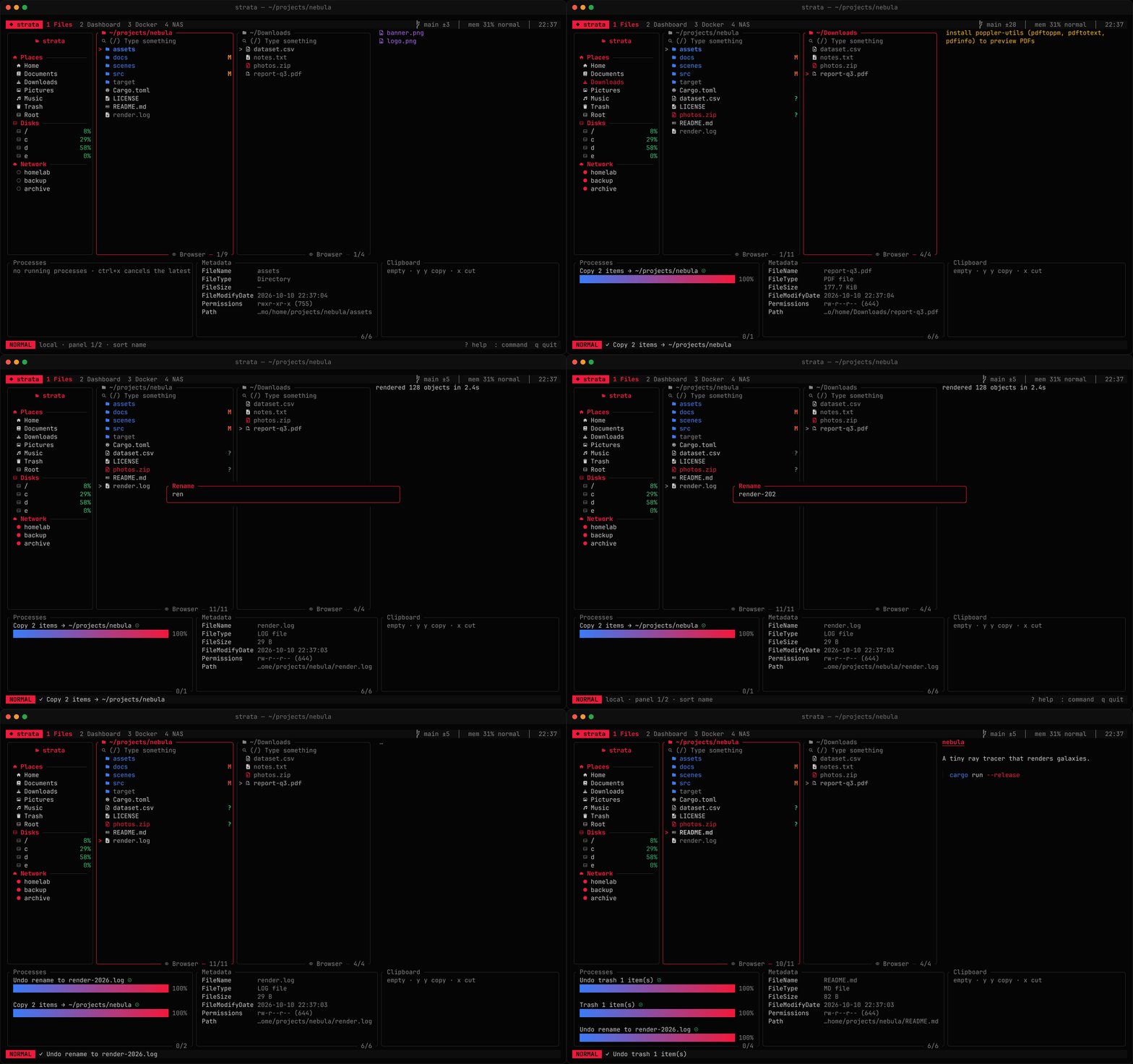
Most actions apply to the marked items, or to the item under the cursor when nothing is marked. Mark with space, select a range with v, extend with J / K, mark everything with ctrl+a or by pattern with :select *.png.
Copy and move
| Keys | Action |
|---|---|
| y y / x then p | Copy / cut, then paste in another directory |
| c / m | Copy / move straight into the next panel |
If some names already exist in the destination, strata asks about each one in turn, showing the size and modification time of both and which is newer: o overwrite (replaced items go to the trash on local disks), s skip, k keep both (the new item becomes name (1).ext), or n overwrite if newer. a ticks apply to all remaining, so the next answer settles the rest at once; esc cancels the whole paste. Nothing is copied until every name has an answer. The same dialog appears for c / m.
Transfers run in the background, so you can keep working. Their progress appears under Processes in the footer, with the current speed and, once it has settled, the time left (time spent paused does not count); alt+p pauses or resumes the latest one and ctrl+x cancels it. If a copy or move fails or is cancelled, alt+R (or :retry) picks it up where it stopped: items that finished are left alone, files that already arrived complete are kept, and the rest go into the same destinations as before. Copies work between any locations — local disk, SFTP servers and Docker containers.
To keep a copy from saturating a link, :limit 10M caps each new copy, move or sync job at 10 MiB/s for the rest of the session (:limit off lifts it, :limit alone shows it); set bandwidth_limit in the config to start with one. Rates are written like rclone's --bwlimit: 512K, 10M, 1G, with a bare number meaning KiB/s. The limit applies to local copies, SFTP and rclone remotes alike.
When a local copy, move, delete, chmod or chown fails with permission denied, the error says so, and alt+s (or :sudo) runs the rest of it again as root. strata asks first, then hands the matching cp, mv, rm, chmod or chown to sudo in the terminal, where it can ask for your password. Items that already finished are left alone. A delete done as root is permanent, since root's trash is not yours, and undo does not cover anything done as root. To use doas, run0 or another program, set elevate in the config.
To check that copies arrived intact, paste with :paste --verify (or set verify_copies = true to check every copy and move). Each file is hashed (SHA-256) as it is read, then the copy is read back and hashed; if they differ, the bad copy is removed and the job fails before a move deletes the original. Reading copies back shows in the progress, so a verified copy takes about twice as long. Only copies onto the local disk are checked: copies to remote locations would have to be downloaded again, so they go through unchecked.
Create, rename, delete
| Keys | Action |
|---|---|
| a / A | New file / directory (docs/notes.md creates the folder too) |
| r | Rename |
| R | Bulk rename the marked items in $EDITOR |
| g r | Rename the marked items with a pattern |
| d d | Move to the trash |
| D | Delete permanently |
Bulk rename opens one name per line in your editor; change the lines, save and quit. Swapping two names works, and strata refuses to overwrite files that are not part of the rename.
Rename with a pattern
g r (alt+m in the classic preset) asks for a pattern and shows the new names as you type. Enter renames every marked item, in the order they are listed, as one step you can undo. :rename-pattern <pattern> does the same without the prompt. Items can be in different folders, for example after a :find.
A pattern is a template for the whole new name, or a regex substitution:
photo-{n:3}{.ext}             IMG_4821.JPG  → photo-001.JPG
{date}_{name|lower}{.ext}     Notes.TXT     → 2026-10-11_notes.TXT
s/IMG_(\d+)/trip-$1/          IMG_4821.JPG  → trip-4821.JPG
s/ +/_/g my file.txt → my_file.txt| Token | Value |
|---|---|
{name}, {ext}, {.ext} | Name without the extension; the extension without / with its dot (empty when there is none) |
{full} | The whole current name |
{n}, {n:3}, {n:3:10} | A counter, zero-padded to 3 digits, starting at 10 |
{date}, {date:%Y%m%d} | The modification date |
{parent} | The containing folder's name |
$1, {1}… | Regex groups, in substitutions |
Add |upper, |lower or |title to any token: {name|title}. Substitutions take the flags g (every match) and i (ignore case). strata refuses a pattern that gives two items the same name or would overwrite another file.
Saved selections
Marks can be kept under a name and brought back later, in another folder or another session:
| Command | Action |
|---|---|
:select save <name> | Save the marked items (or the hovered one) under a name, replacing what it held |
:select add <name> | Add the marked items to a selection, creating it if needed |
:select load <name> | Mark the saved items again |
:select list | Show the saved selections and how many of their items are missing |
:select delete <name> | Forget a selection |
Selections hold local paths, so one can gather items from several folders. Loading marks them in place when the panel already lists them all; otherwise they open as a flat listing, like :find results, with every item marked, ready for a copy, :each or :!. Items that no longer exist are reported and left out. Selections are kept in ~/.local/share/strata/selections.json.
Tags
, opens the tag menu for the marked items: pick a colour (red, orange, yellow, green, blue, purple, gray) or a tag to switch it on or off, or type a new tag and press enter. Tagged items show coloured dots after their names, and every tag gets an entry in the sidebar that lists what carries it.
| Command | Action |
|---|---|
:tag <name> / :untag [name] | Add a tag / remove one, or all of them |
:tags | Pick a tag and list everything tagged with it |
:select tag:<name> | Mark the listed items with that tag |
:find --tag <name> | Find tagged items below the current folder |
:tags prune | Forget the tags of items that no longer exist |
Tags are kept in ~/.local/share/strata/tags.tsv and follow items you rename or move in strata, including through undo. On Linux they are also written to the user.xdg.tags extended attribute, which other file managers such as Dolphin read and which survives moves made elsewhere.
Duplicate and link
| Keys | Action |
|---|---|
| Y | Duplicate the marked items next to themselves (name (1).ext) |
g l / :link | Paste the clipboard as symbolic links |
g L / :link -r | Paste the clipboard as relative symbolic links (../lib/x) |
:hardlink | Paste the clipboard as hard links |
Links are made in the focused directory to what you copied with y y, and get a (1) suffix when the name is taken. Symbolic links work on the local disk, SFTP servers and in Docker containers; hard links on the local disk and in containers.
Permissions and owners
= asks for new permissions for the marked items, starting from the hovered item's current mode. Type an octal mode (644, 2755) or a symbolic one like chmod takes (u+x, go-w, a=rX, u=rwx,go=rx). Start with -R to change everything below directories too; symbolic links met on the way are left alone. The same works as :chmod [-R] <mode>.
:chown [-R] user[:group] (or :group) changes the owner of local items. Names are looked up the way id and getent do, so LDAP users work too. Changing owners usually needs root.
Compare
C compares two items:
- two marked items in the same panel, or
- the hovered item with the item of the same name in the next panel (or, if there is none, the item hovered there).
Two text files open as a coloured unified diff. Binary or large files (over 4 MiB) only report whether they differ. Two directories are compared recursively: the report lists what differs and what exists on one side only. Comparisons run in the background and work across local, SFTP and Docker locations.
To use your own diff tool for local files, set it in the config:
[general]
diff_tool = "nvim -d"   # or "meld", "code --diff --wait", "delta"…
Sync
:sync makes the next panel's folder match the focused one, one way: it copies what is missing there and replaces files whose contents differ. Nothing changes until you confirm the plan, which shows how many items it will copy, replace and delete, and how much it will copy.
| Option | Effect |
|---|---|
--mirror | Also delete what only the destination has |
--newer | Replace a differing file only when the source copy is newer |
--verify | Check each copied file against the original, as with :paste --verify |
--dry-run | Only list what would happen: + copy, ~ replace, - delete |
Files are compared by content, like C, so a sync works across local, SFTP and Docker locations. Replaced and deleted items go to the trash on local folders, and the whole sync can be undone; on remote folders they are removed for good, and only the copies can be undone. One failing item does not stop the others.
Duplicates
:dupes finds duplicate files below the current folder: files of the same size are compared by content (SHA-256). Empty files, symbolic links and extra hard links to the same file are left out, and so are hidden files unless they are shown. The results open in a list, biggest savings first, numbered by group:
| Keys | Action |
|---|---|
| enter | Go to the file |
| ctrl+d | Trash this copy, then show the list again |
:dupes keep oldest, keep newest or keep shortest (the shortest path, usually the original rather than copy (2)) trashes every other copy in each group, after asking. Files that changed since the scan are left alone, and the trashing can be undone. Finding duplicates works on local folders.
Removable drives
:drives lists USB sticks, SD cards and external disks, mounted or not. enter opens one, mounting it first if needed; ctrl+e ejects it. :mount <label> mounts and opens a drive directly.
:eject unmounts the drive holding the current folder and powers it off so it can be pulled out safely; :eject <label> picks one by name, and d d on a removable disk in the sidebar ejects that one. Panels inside the drive step out of it first.
On Linux this uses udisksctl (from udisks2, installed on most desktops; no root needed), on macOS diskutil, which mounts external drives by itself.
What is using a file
When an eject or unmount fails because the drive is busy, strata lists the programs still using it: their process ID, name, and what they hold — an open file, their working directory (cwd, such as a shell sitting in the drive), the program itself, or a mapped library. Close them, or cd out in their terminal, and try again. A job that fails with "resource busy" points to the same list.
:holders shows this for the hovered item, or anything inside it when it is a folder; :holders <path> checks another path. On Linux it reads /proc and needs no extra tools; on macOS it uses lsof. Programs of other users can only be seen when strata runs as root, and the list says how many it could not check. Not available on Windows yet.
Checksums
# shows the MD5, SHA-1 and SHA-256 of the marked files. :checksum sha256 (or md5, sha1, sha512) copies the hovered file's checksum to the clipboard instead.
To verify a download:
:verify <hash>checks the hovered file against a hash you paste. The algorithm follows from the hash's length.:verifyon a checksum file (SHA256SUMS,MD5SUMS,app.iso.sha256…) checks every file it lists, in GNU (hash file) or BSD (SHA256 (file) = hash) format.
Trash
U (or :trash) lists what is in the trash, newest first: name, when it was deleted and where from. Type to filter. In the list:
| Keys | Action |
|---|---|
| enter | Restore the item where it came from and show it |
| ctrl+d | Delete the item for good |
| ctrl+e | Empty the trash |
Restoring refuses to replace something that has taken the item's place. Restores can be undone like other operations. :empty-trash empties the trash after asking. Browsing the trash works on Linux, the BSDs, Windows and macOS. On macOS strata reads ~/.Trash directly (the terminal needs Full Disk Access) and takes original locations from Finder's put-back records; an item trashed without Finder has none and is restored into the current folder.
Archives
enter on a zip or tar archive opens it like a directory: .zip, .jar, .apk, .whl and other zip-based files, and .tar with gzip, bzip2, xz or zstd (.tar.gz, .tgz, .tar.bz2, .tar.xz, .tar.zst…). Browse and preview inside it, and copy items out with c or y y and p. Archives are read-only: renaming, deleting or pasting into them is refused, and edits to files opened from them are not saved back. h at the archive's root goes back to the folder that holds it.
The archive is indexed once when you open it, and files are read in archive order, so copying a whole .tar.gz out decompresses it only once. Set browse_archives = false to open archives with the system app instead.
X (or :extract) unpacks the hovered archive into the current folder: in place when it holds a single item, otherwise into a folder named after it. It runs as a copy, so it shows progress and can be paused, resumed and undone. Other formats such as .7z and .rar are handed to 7-Zip when it is installed.
:compress [name] packs the marked items, or the hovered one, into an archive; without a name it asks, suggesting .zip. strata writes .zip, .tar, .tar.gz and .tar.bz2 itself, and uses the system tar for .tar.xz and .tar.zst.
Password-protected zips
:compress --password [name] (or -p) encrypts a zip's contents with AES-256, asking for the password twice. File names stay readable, as the zip format stores them in the clear. 7-Zip, WinZip and bsdtar open AES zips; the old Info-ZIP unzip and macOS Archive Utility do not.
Opening or extracting an encrypted zip (AES or legacy ZipCrypto) asks for its password, with the input masked. The password is checked before anything is shown or extracted: a wrong one says so and asks again, never producing garbage files. Once a password works, strata offers to remember it for that archive in the system keychain (the same one as NAS passwords); remembered passwords are used without asking, and :forget with the archive hovered removes it. Encrypted .7z archives are left to 7-Zip.
Undo and redo
Press u (or ctrl+z with the classic preset) to undo the last operation, and ctrl+r (ctrl+y) to redo it. Doing something new clears what can be redone. Undo covers:
- renames and bulk renames,
- new files and directories (they go to the trash),
- copies (the copies go to the trash),
- moves (items go back where they came from, even across filesystems),
- overwrites on a local disk (the replaced items come back from the trash),
- trashing (items are restored from the trash — Linux, Windows and macOS),
- restores from the trash browser (they go back to the trash),
- links and duplicates (they go to the trash),
- permission and owner changes (the old ones are set again),
- syncs (copies go to the trash, replaced and deleted items come back).
confirm_delete = false.Open files
enter opens text files in your editor, media or documents with the system app, and archives like directories. o always uses the system app, and e / E open the file or the whole directory in your editor. To choose programs per file type, see open_with.
Remote files
On SFTP servers and in Docker containers, enter and e download the file to a private temporary folder and open it in your editor. When you quit the editor, strata uploads the file back if you changed it, then deletes the copy.