Troubleshooting
Start with the connection check on the drive in question — it answers most "why will this not connect" questions by itself. This page covers what it cannot.
"Multiple connections to a server" — credential conflicts
Windows allows one set of credentials per server for your whole sign-in session. If anything is already connected to the NAS under one account — a share you mapped in Explorer, a backup tool, an Explorer window on a \\NAS\share path — a mount with a different account is refused.
Helix works around most of this on its own:
- It mounts the shares of one NAS one at a time, so "connect all" does not trip over itself.
- When something still holds the server, the drive joins that session, coming up on whatever account it uses.
- When the session is a leftover nobody is using, Helix clears it and tries the drive's own credentials.
- As a last resort it mounts under the server's other name (IP address versus hostname), which Windows treats as a different server.
If the check still reports a session conflict, close every Explorer window and disconnect every mapping that uses the NAS, then try again. Switching on Connect using the server name for the drive avoids the collision in the first place when you address the NAS by IP. macOS has none of this: it signs in per mount.
A new password "works" whatever you type
Because of the rule above, while other shares of the same NAS are mounted, a drive mounts on their existing session and its own stored password is never checked. Editing a password and reconnecting that one drive appears to work even if the password is wrong.
To really test a password, disconnect every drive on that NAS first, then connect or run the connection check. The check warns you when the password went untested.
Connections time out
A mount waits up to thirty seconds before giving up. A NAS addressed by name can take several seconds just to be found, especially right after sign-in.
- If a drive reported Connection timed out and then came up anyway, Helix notices, removes the error and marks the drive connected.
- If timeouts are frequent, try the NAS's IP address instead of its name, or the other way round.
- An absent NAS is detected in about two seconds and shown as Unreachable, not as a timeout.
Drives show Unreachable or Away
Unreachable means the NAS did not answer at all: switched off, asleep or on another network. Helix retries every 30 seconds. Give the drive a Wake-on-LAN address if the NAS sleeps, or an away address if you reach it over a VPN.
Away means the drive is pinned to its home network and you are elsewhere. That is not an error; clicking the pill connects it anyway.
A drive I disconnected came back
Drives you disconnect yourself are never reconnected by Helix. A drive with Reconnect at Windows sign-in on is restored by Windows itself at the next sign-in, though; turn that off if you do not want it.
Logs and the diagnostics zip
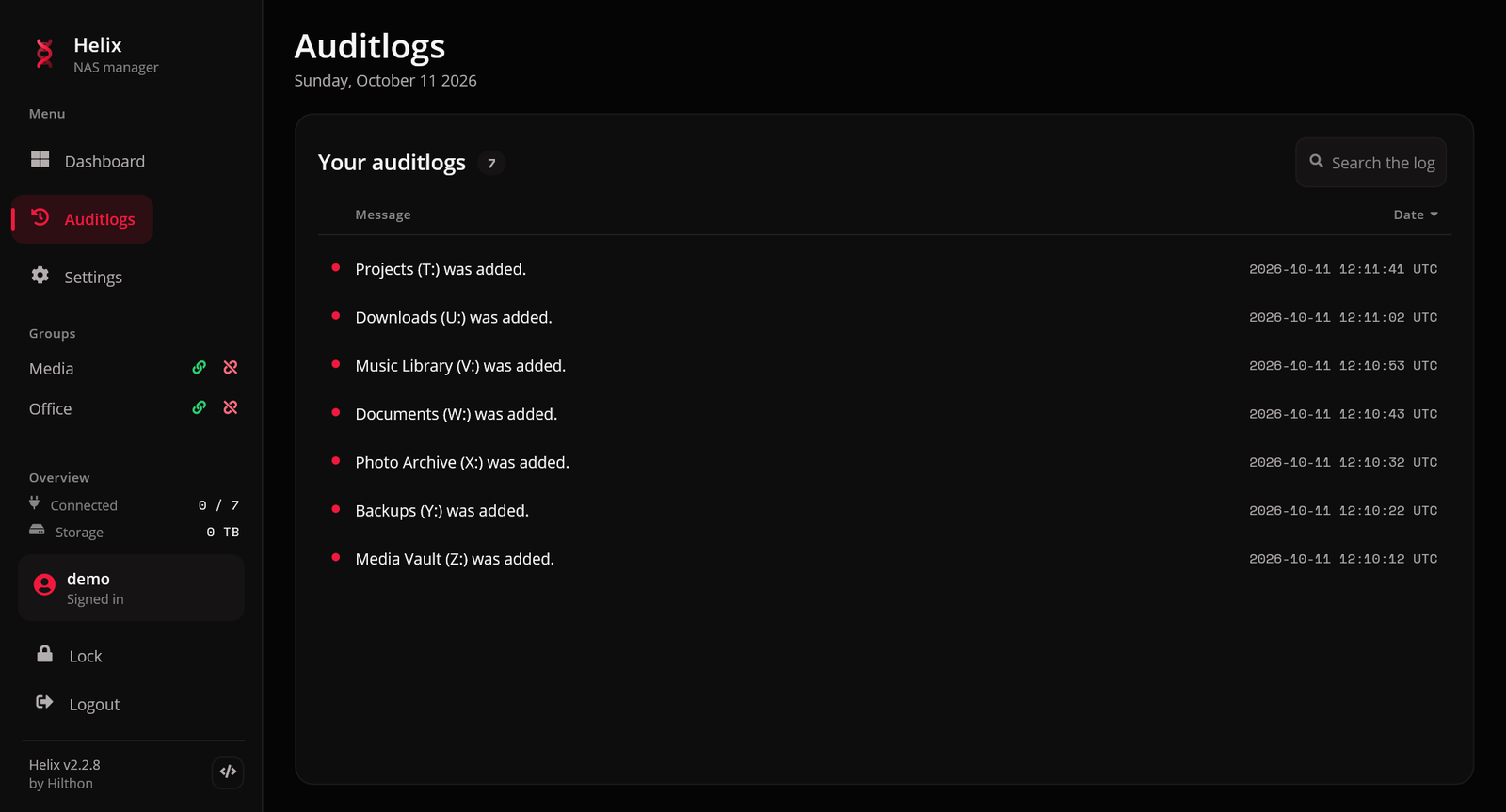
Helix keeps a log of what it did — including unattended reconnects — for 14 days, rolling to a new file every 2 MB.
| Platform | Log folder (release builds) |
|---|---|
| Windows | %LOCALAPPDATA%\Helix.App\Helix.App\Data\logs |
| macOS | logs in the app's data folder under your user Library |
Settings → Diagnostic logs → Export saves them all as one zip. Attach it to a GitHub issue. The logs keep passwords, hosts and share names out beyond the drive letter, but read them before sending if you are unsure. The updater writes its own helix-updates.log in the same folder.
Empty database after an update
If Helix suddenly shows the register page and no drives after an update, it is almost certainly reading a different data folder, not a deleted one. Release builds keep their data in %LOCALAPPDATA%\Helix.App\Helix.App\Data. A copy of Helix built from source with a different package name keeps its data elsewhere under %LOCALAPPDATA%.
- Do not register a new account yet.
- Look under
%LOCALAPPDATA%for another folder containinghelix.db. - Open an issue with the diagnostics zip; the log names the folder each run used.
Helix will not start
If the database cannot be opened or its key cannot be read, Helix shows one message naming the reason and the log folder, then exits, rather than creating a fresh database over your data. Before a database update, a copy is left beside it as helix.db.bak.
Still stuck?
Open an issue or a discussion with your Helix version, your OS, and the diagnostics zip.