Adding drives
A drive in Helix is one share on one server, mounted on one letter. Add them one at a time, several from one server at once, or by taking over mappings that already exist on the machine.
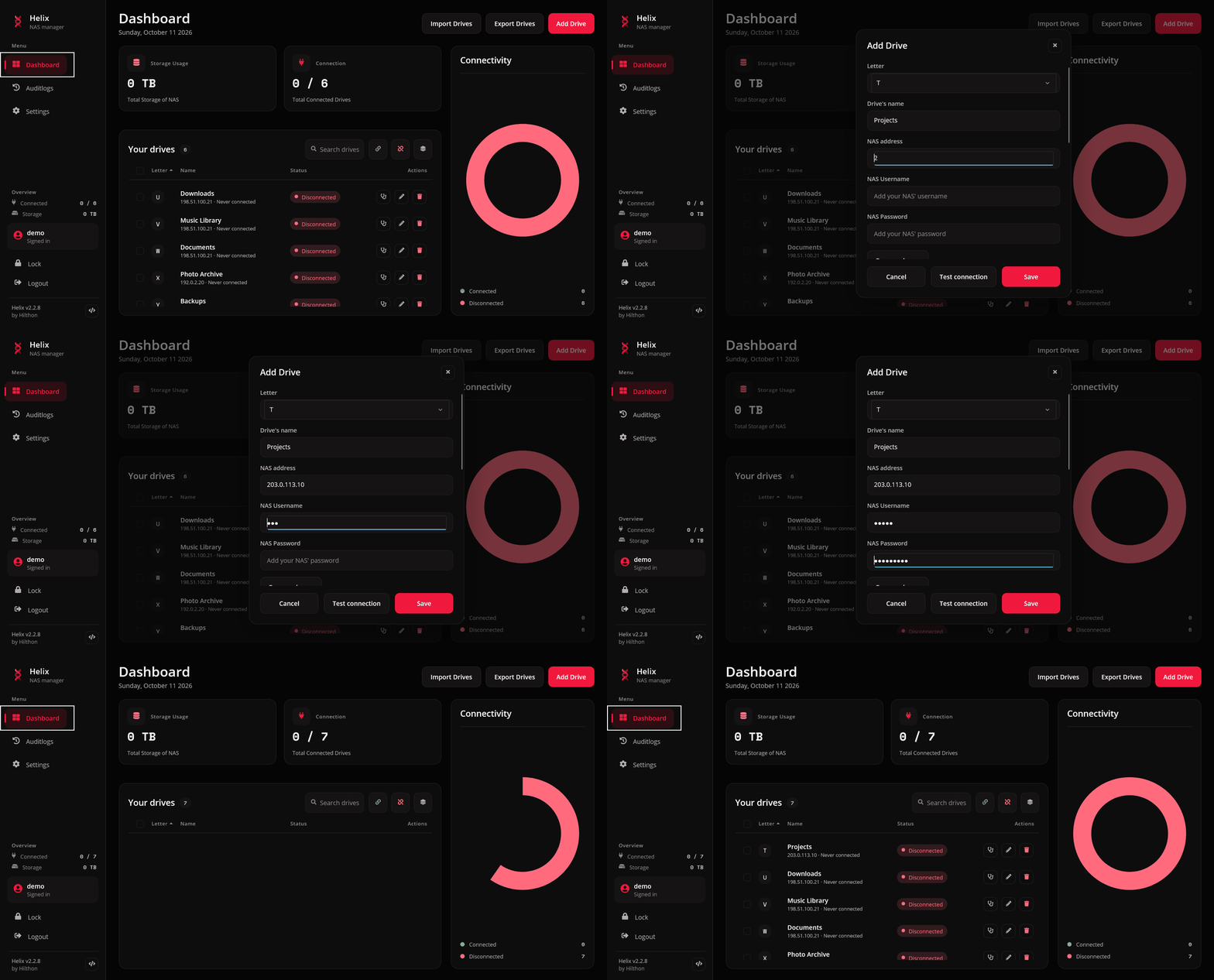
The add sheet
Press Add Drive on the dashboard, or Ctrl+A.
| Field | What goes in it |
|---|---|
| Letter | the drive letter to mount on. Only letters that are free on this computer are offered, so one held by a USB stick never appears |
| Drive's name | the name of the share on the server, such as Photos |
| NAS address | the server — see below |
| NAS Username / NAS Password | the account on the NAS. Show credentials reveals what you typed |
| Address away from home | optional — a second address, for a VPN or Tailscale. See Away from home |
| Wake-on-LAN hardware address | optional — the NAS's MAC address, so Helix can wake it |
On macOS there are no drive letters: the letter names a folder under ~/Helix Drives instead, so Z mounts at ~/Helix Drives/Z.
Host formats
| Form | Example |
|---|---|
| IPv4 address | 192.168.1.6 |
| IPv6 address | fd00::5 |
| Hostname | nas.local, nas.example.com |
| NetBIOS name | MYNAS |
A name keeps working when the NAS's DHCP lease moves; an address is quicker to reach when name lookups are slow.
Switches
| Switch | Effect | Platform |
|---|---|---|
| Connect automatically | include this drive when Helix connects drives on launch and when it reconnects drops in the background. Off keeps it down until you ask | both |
| Reconnect at Windows sign-in | a persistent mapping: Windows restores the drive at sign-in even without Helix running | Windows |
| Connect using the server name | mount under the server's name rather than the IP address you typed, which avoids credential conflicts with other mappings of the same NAS. Only matters when the address is an IP | Windows |
Pressing a drive, a group, a selection or Connect all always connects, whatever Connect automatically says.
Test before you save
Test connection checks the address, share and credentials against the server. Nothing is mounted and no letter is claimed, so it is safe on a half-finished form.
Browse a server's shares
On Windows, once the address and credentials are filled in, Browse shares lists what the server shares. Tick one to fill in the name. Tick several and Save creates one drive per share: the first on the letter you chose, the rest on the next free letters counting down. Shares you already have as drives are shown with their letter and cannot be ticked.
Duplicate a drive
The second drive on a NAS is everything the first one was except the share. Right-click a row and choose Duplicate (or Ctrl+Shift+D): the add sheet opens with the server, credentials, switches, home network and away address filled in and the share left blank.
Adopt existing mappings
Already mapped your shares in Explorer? Drives → Add existing mappings (also offered on an empty dashboard) lists the network letters on this computer that Helix does not manage yet. Tick the ones to take over, enter the credentials they use, and press Add selected. They become persistent drives, and nothing has to be unmapped first. Windows only.
Editing a drive
Edit a drive with the pencil button, F2 or Update Drive on the right-click menu. The edit sheet has everything the add sheet has, plus the home network pin described in Away from home.
If you change the share or the address of a drive that is mounted through it, Helix unmounts it first so the letter does not point at something no drive describes.
One server, one set of credentials
When you change the username or password of a drive whose server has other drives in Helix, the edit sheet offers Use these credentials for the other drives on this server. It is off by default, because a NAS often has an admin share and a guest share under different accounts. "The same server" means the same address string, so a NAS added once by IP and once by name counts as two.
While other shares of a NAS are mounted, Windows reuses their session for a new mount and the stored password is not actually checked. Editing a password and reconnecting one drive may appear to work whatever you type. See Troubleshooting.
Deleting a drive
Deleting a drive that is mounted unmounts it first; if the unmount fails, the drive is kept. Deleting a drive removes it from any groups it was in.