The dashboard
The dashboard is where Helix opens after you sign in: what your NAS holds, which drives are up, and every drive in one list.
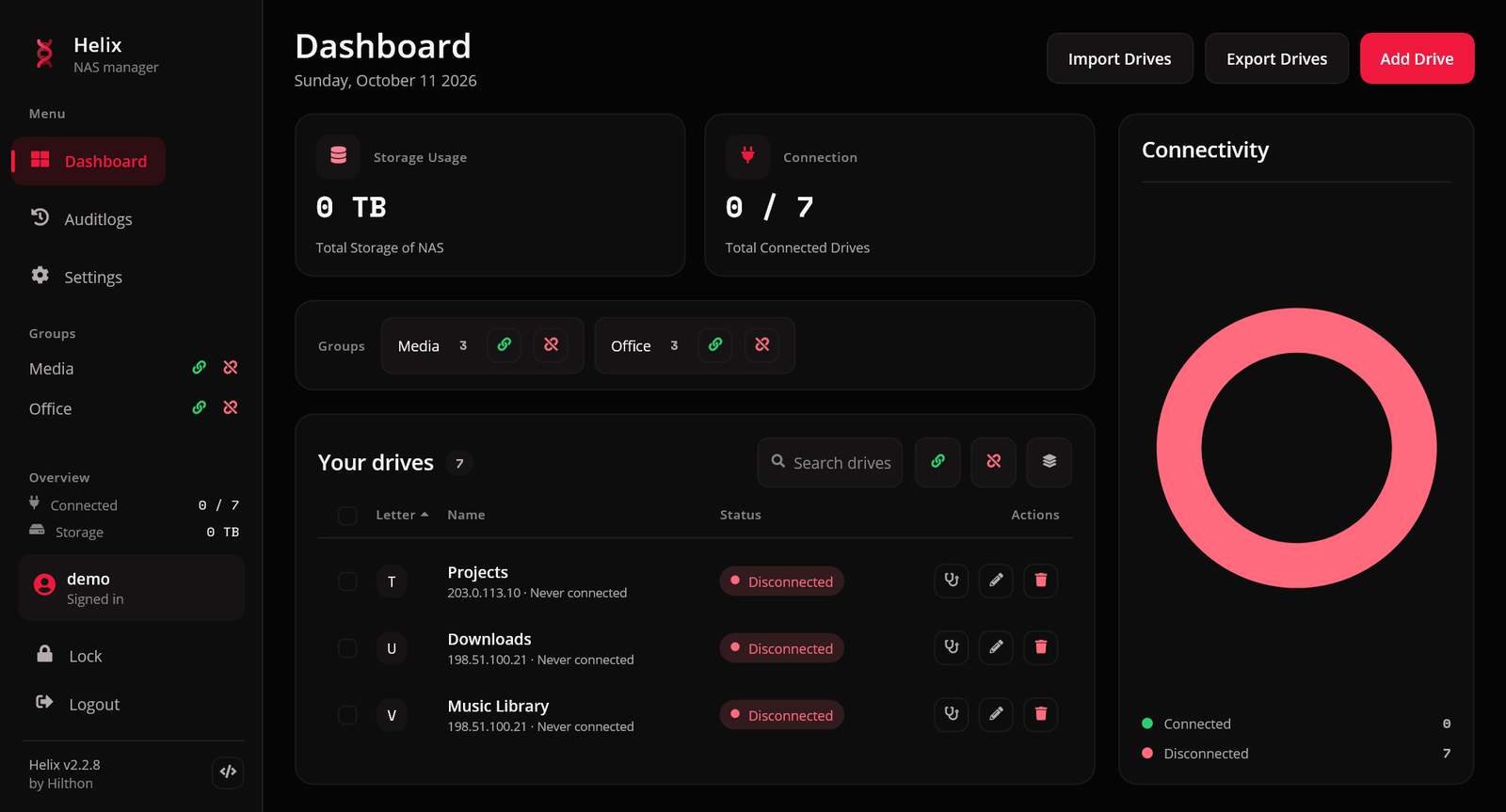
The layout
| Part | What it shows |
|---|---|
| Storage Usage | total storage of the NAS volumes your connected drives sit on |
| Connection | how many drives are connected, out of how many |
| Groups | your drive groups, each with connect and disconnect buttons |
| Your drives | the drive list, with a search box and the all-drives buttons |
| Connectivity | a donut of connected against disconnected drives |
The storage total counts each NAS volume once, however many of its shares you have mapped, so thirteen shares of one pool read as one pool. Drives that are not connected are not measured.
Helix also keeps a reading of each volume's free space once a day, for about thirteen months. Once it has a week or more of readings, and a volume is filling up, the storage tile adds a line such as Full in about 4 months at the current rate, for the volume that will run out first; hover it for which drives that is and how fast it is filling. A volume that is steady, shrinking, or more than a year from full shows no line. The estimate is a straight line through the last 30 days, so a one-off copy of a large folder moves it, and it settles again as the days pass.
The sidebar carries the same essentials on every page: your groups, a connected count and storage total, a low-space warning light, an update badge when a new release exists, and the Lock and Logout buttons.
The drive list
Each row shows the letter, the drive's name, its host and when it last connected, how much space is free, a status pill and action buttons: open the folder, diagnose, edit and delete.
Status pills
| Pill | Meaning | Click it to |
|---|---|---|
| Connected | mounted and live | disconnect |
| Disconnected | not mounted, and nothing has gone wrong | connect |
| Unreachable | the last attempt found the NAS not answering — off, asleep or on another network. Helix keeps trying | connect now |
| Failed | the NAS answered but refused the mount, for example a wrong password or a missing share. Hover for the reason | try again |
| Away | the drive is pinned to a home network and this computer is elsewhere, so it is not reconnected automatically | connect anyway |
A drive nobody has tried yet stays on Disconnected rather than being guessed at, and a successful connect clears an old Unreachable or Failed. See Away from home for the pin.
Searching and sorting
The search box filters the list as you type, by letter, name or host. Ctrl+F jumps to it. A search that matches nothing offers to clear itself.
Click the Letter, Name or Status column header to sort by it; click again to reverse. Storage usage does not sort.
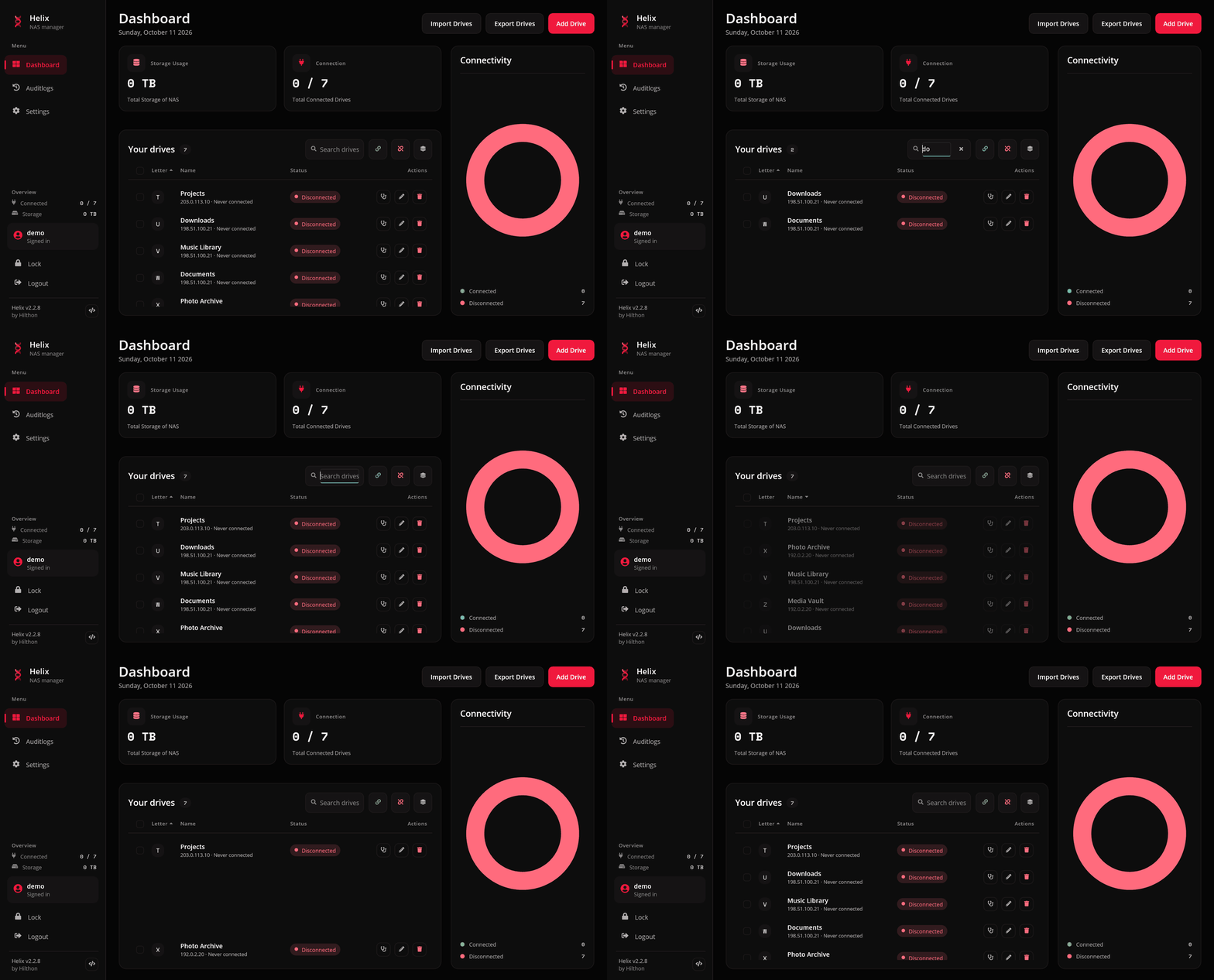
The tiles and the donut always describe every drive, not just the ones the search leaves on screen.
Keyboard
On Windows, Tab moves into the list and Up / Down move between rows. Each row is one stop, and the keys act on it:
| Key | Action |
|---|---|
| Enter | connect or disconnect |
| Space | tick the row for a selection |
| Delete | delete the drive |
| F2 | edit the drive |
| Ctrl+D | run the connection check |
| Ctrl+Shift+D | duplicate the drive |
| Ctrl+O | open its folder (only while connected) |
| Ctrl+W | send its NAS a wake-up packet (only with a hardware address set) |
The Drives menu has its own shortcuts:
| Shortcut | Action |
|---|---|
| Ctrl+A | add a drive |
| Ctrl+G | manage groups |
| Ctrl+T | manage schedules |
| Ctrl+F | search |
| Ctrl+E | export drives |
| Ctrl+I | import drives |
The right-click menu
Right-click a row for the same actions: connect or disconnect, Open in file manager, Diagnose, Wake NAS, Update Drive, Duplicate and Delete Drive.
Compact layout
When the window is narrow, the drive list switches to a compact layout on its own: the buttons above the list drop their labels (hover for a tooltip) and the storage-usage column is hidden, so the drive's name keeps its room.
The audit log
The Auditlogs page in the sidebar lists every drive you added, changed or removed, and every drop and automatic reconnect, newest first. It loads more as you scroll, the search box filters it like the drive list, and entries are shown in your current language. How long it keeps history is set in Settings.