Settings & themes
Settings is in the sidebar, and File → Preferences opens it from the dashboard. It has two halves: your account and your preferences. Preferences are per account, except the theme.
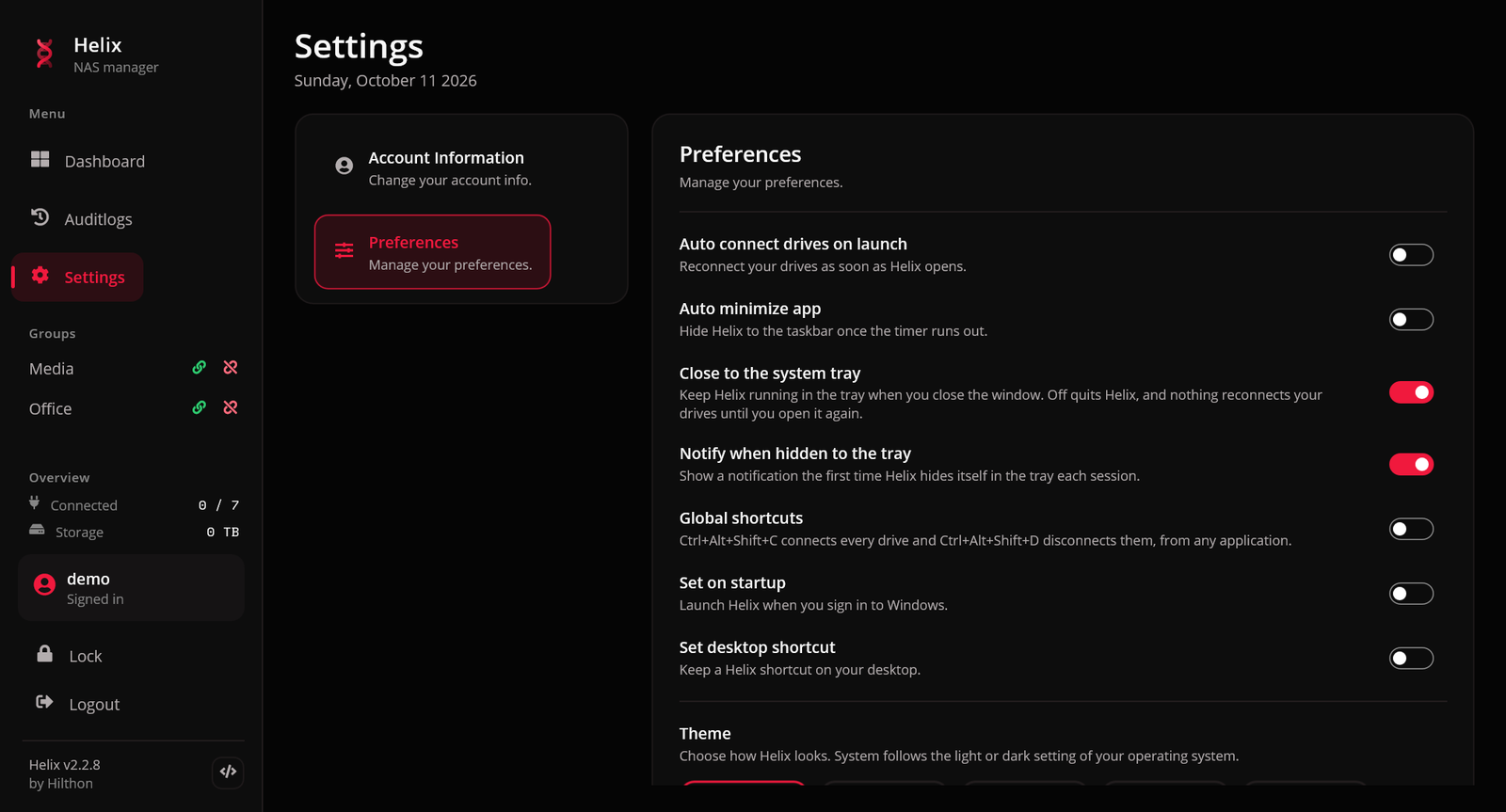
Switches
| Setting | What it does |
|---|---|
| Auto connect drives on launch | connect your drives as soon as you sign in. Drives with Connect automatically off, and pinned drives away from home, are left out |
| Auto minimize app | hide Helix to the tray after a countdown on the dashboard |
| Close to the system tray | on by default: the close button hides to the tray instead of quitting. Windows only |
| Notify when hidden to the tray | on by default: say so the first time Helix hides itself each session. Windows only |
| Global shortcuts | off by default: Ctrl+Alt+Shift+C / D from any app — see Tray & shortcuts |
| Set on startup | start Helix when you sign in to your computer (a Startup-folder shortcut on Windows, a LaunchAgent on macOS) |
| Set desktop shortcut | keep a Helix shortcut on your desktop |
A switch takes effect the moment you flip it.
Numbers
Each number has a stepper and a unit; typing a value saves it when you press Enter or leave the field. Several have a meaning for zero.
| Setting | Default | Zero means |
|---|---|---|
| Timer count in seconds — the auto-minimize countdown | 15 seconds | — |
| Audit log retention — days of history to keep | 90 days | keep everything |
| Low space warning — warn when a volume has less than this much free | 10% | off |
| Lock when idle — ask for the password after this many minutes without input | 0 | never lock |
The auto-minimize countdown
With Auto minimize app on, the dashboard header shows a small countdown chip (m:ss). When it reaches zero the window hides to the tray. Cancel it from the chip; it only runs while the dashboard is on screen.
The low-space warning
Every 15 minutes Helix measures the free space on the volumes your connected drives sit on. When one falls below the threshold you get a notification naming the drives on it, and the sidebar's warning light comes on. A volume is reported once, not every quarter of an hour, and can warn again after it has recovered.
The idle lock
After the set number of minutes without keyboard or mouse input anywhere on the computer, Helix covers itself with a lock screen and asks for your password. It is a lock, not a sign-out: your drives stay mounted, and reconnects and schedules carry on behind it. The Lock button in the sidebar locks immediately, whatever this setting says. A forgotten password? Sign out from the lock screen and use Forgot your password?.
Themes
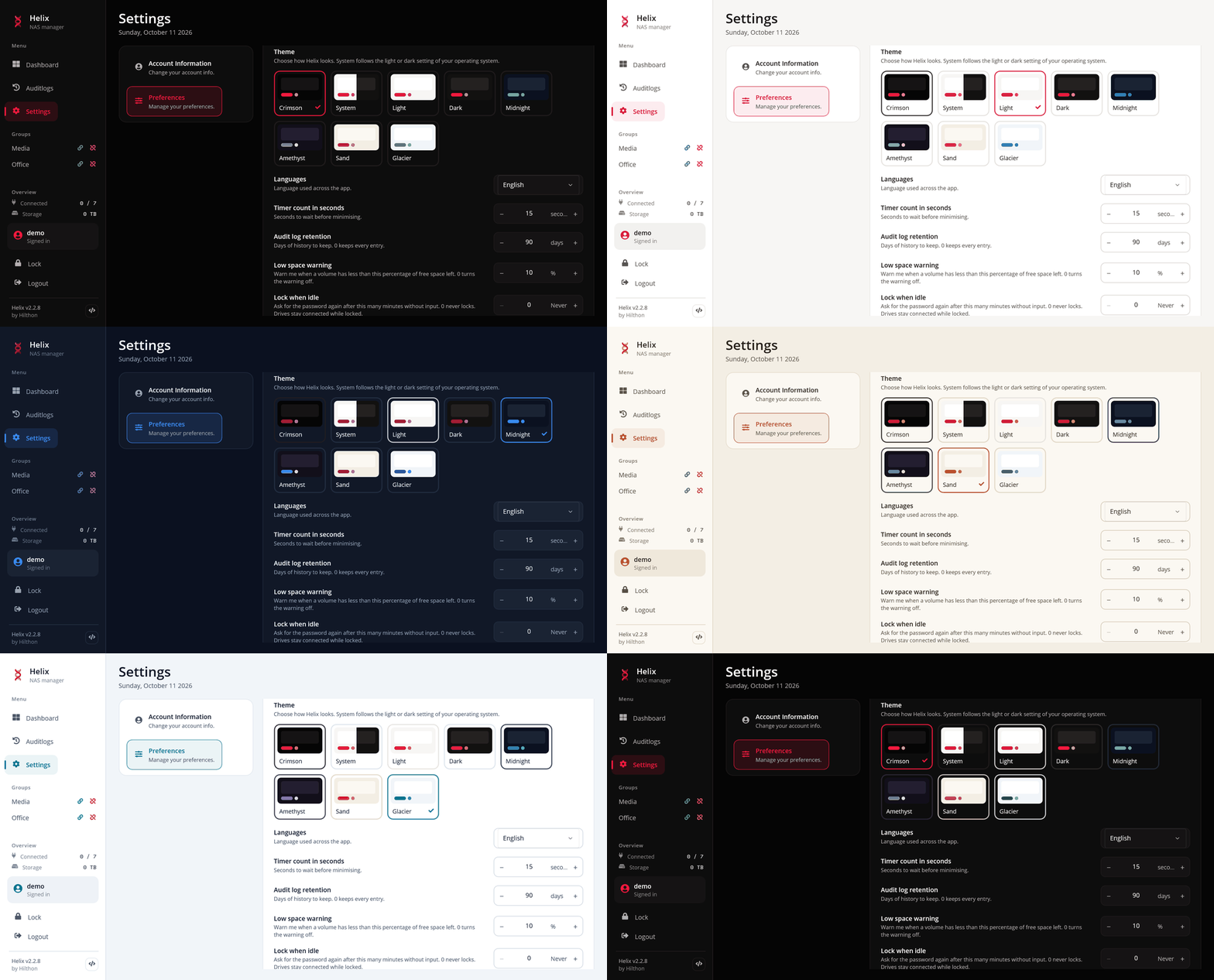
| Theme | Look |
|---|---|
| Crimson | the default: near-black with a crimson accent |
| System | Light or Dark, following your operating system |
| Light | light |
| Dark | dark |
| Midnight, Amethyst, Sand, Glacier | custom palettes |
The theme applies at once, including to the sign-in and lock pages, and is remembered per user of the computer rather than per Helix account.
Language
English, French, German, Dutch, Indonesian and Japanese. The audit log is shown in the language you pick, including entries written before you changed it.
Diagnostic logs
Export saves Helix's log files — 14 days of what it did, including unattended reconnects — as a zip in a folder you choose, to attach to a bug report. See Troubleshooting.
Updates
Check for updates compares your version with the latest release on GitHub and, when a newer one exists, offers to download and install it. See Installation.
Account
| Item | What it does |
|---|---|
| Username | change your username |
| Password | change your password; asks for the current one |
| Recovery key | Create a new recovery key after entering your password. The old key stops working. Accounts created before recovery keys existed should make one — Helix reminds you at every sign-in until you do |